Control-flow steps
These steps branch, pause, or redirect the flow.Actions
Actions are grouped in the step picker: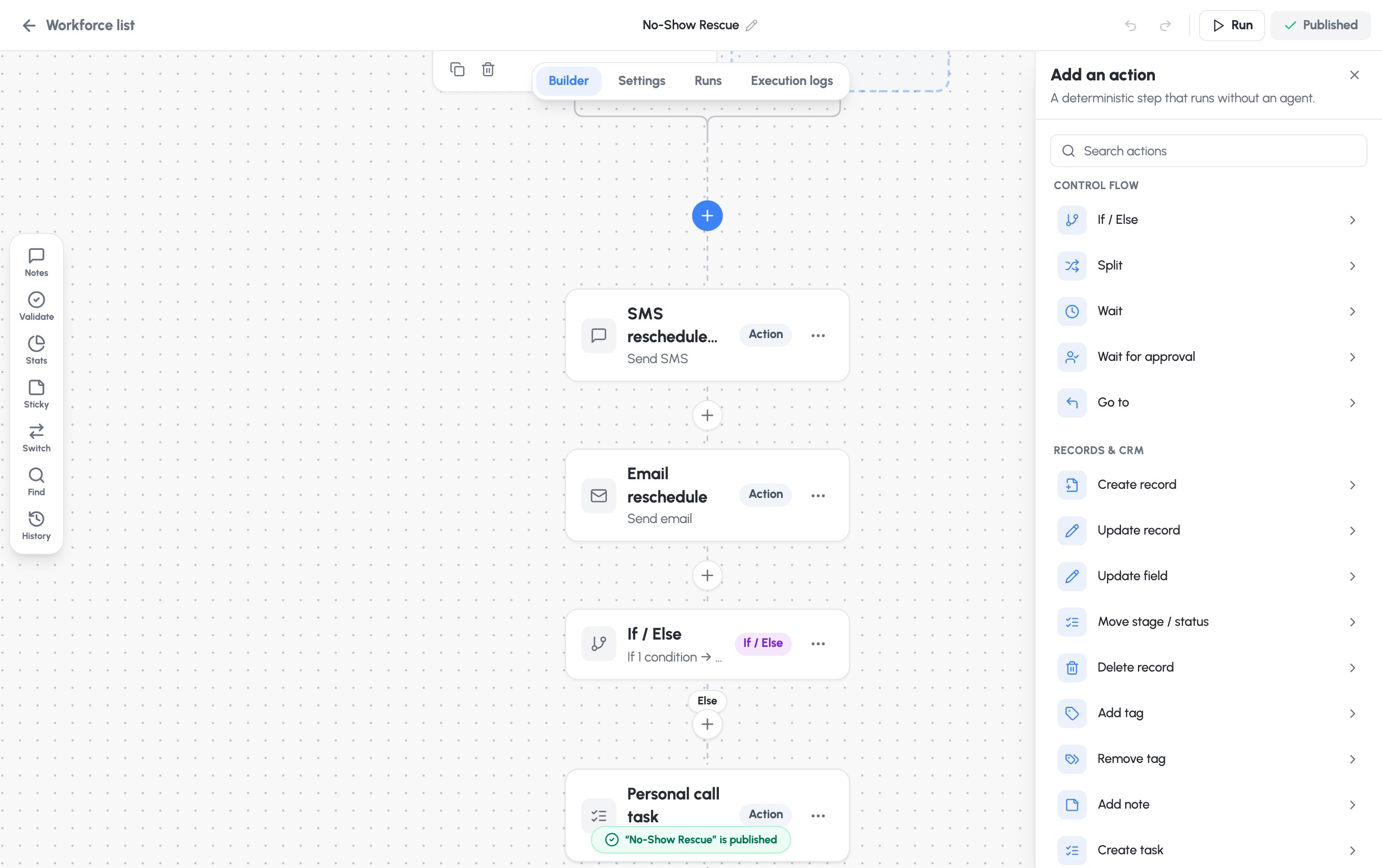
Metered actions. Send SMS, Call, Send fax, and the AI Worker step consume
usage and appear in your ROI dashboard and billing.
Send email and outbound webhooks are not metered.
Sticky notes
Add Sticky notes from the left toolbar to annotate the canvas for your teammates. They’re not part of the flow and never block publishing.The AI Worker step
The AI Worker step is an agentic step: given plain-language instructions, it reasons over the contact’s context and drives an outcome on a channel. Add it from the AI group in the step picker, then configure it.Safe by default. An unconfigured worker has no tools and can’t change any
record. It gains abilities only from what you grant below — and those limits
are enforced on the server, not just in the app.
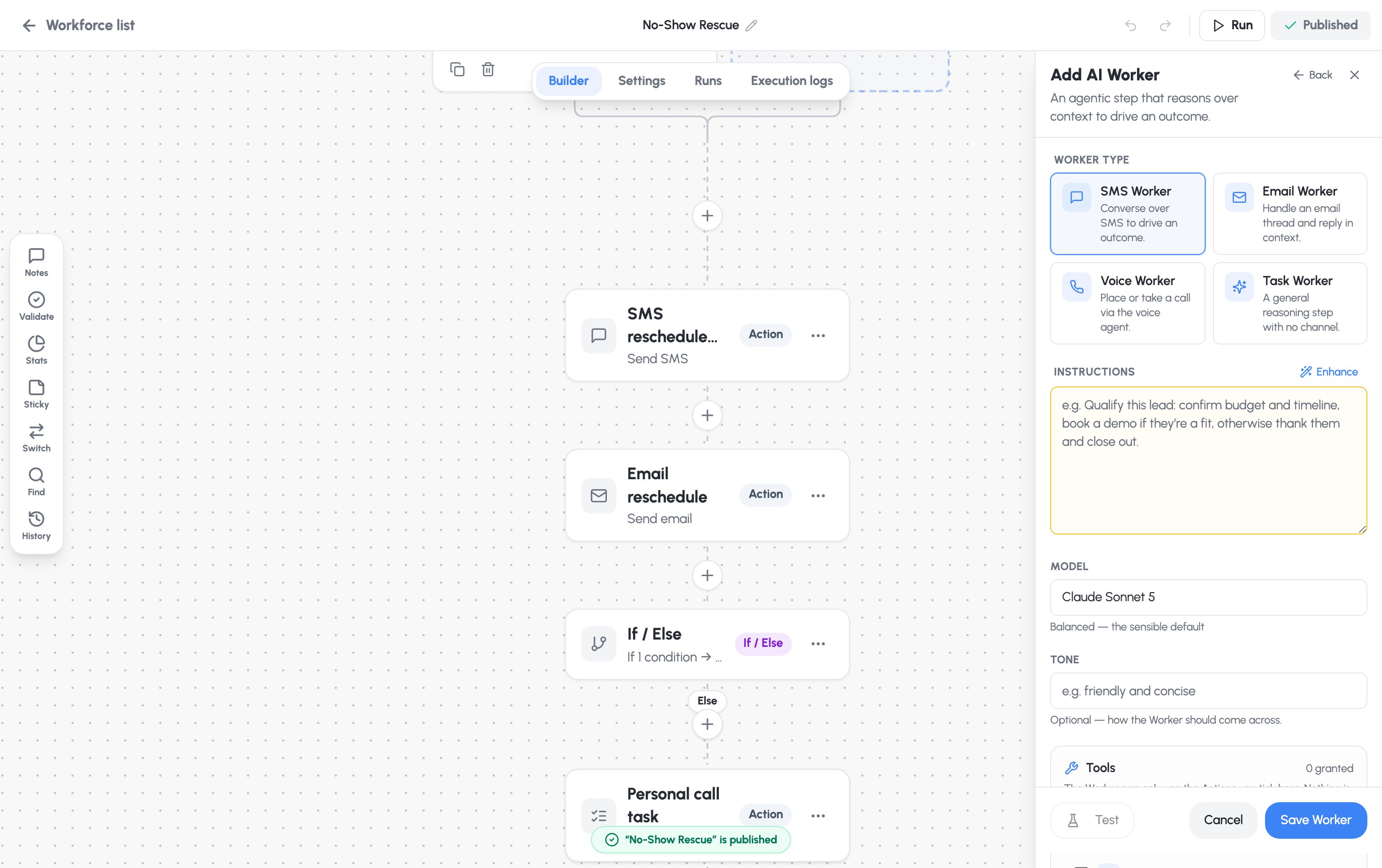
Choose a worker type
Instructions and model
- Instructions — a plain-language objective. The Enhance button scaffolds an Objective / Guidelines / Success-looks-like structure for you.
- Model — choose the reasoning model:
- Claude Opus 4.8 — most capable, for the hardest reasoning
- Claude Sonnet 5 — balanced; the sensible default
- Claude Haiku 4.5 — fastest and cheapest, for simple tasks
- Tone (optional) — how the worker should come across.
Grant tools and write-back
- Tools — the worker can only use the actions you tick here. Nothing is granted by default.
- Field write-back — the only record fields the worker may change. For each field, choose AI decides the value or You set a fixed value. A fixed value can’t be changed even by a jailbroken worker.