Pause for approval
Add a Wait for approval step (a control-flow step) anywhere you want a person to sign off before the run continues. It creates two paths:- Approved — taken when a teammate approves.
- Rejected — taken when a teammate rejects.
- Wait for an answer (hours) — how long to wait before timing out (default 72).
- If nobody answers in time — take the Rejected path (default) or the Approved path.
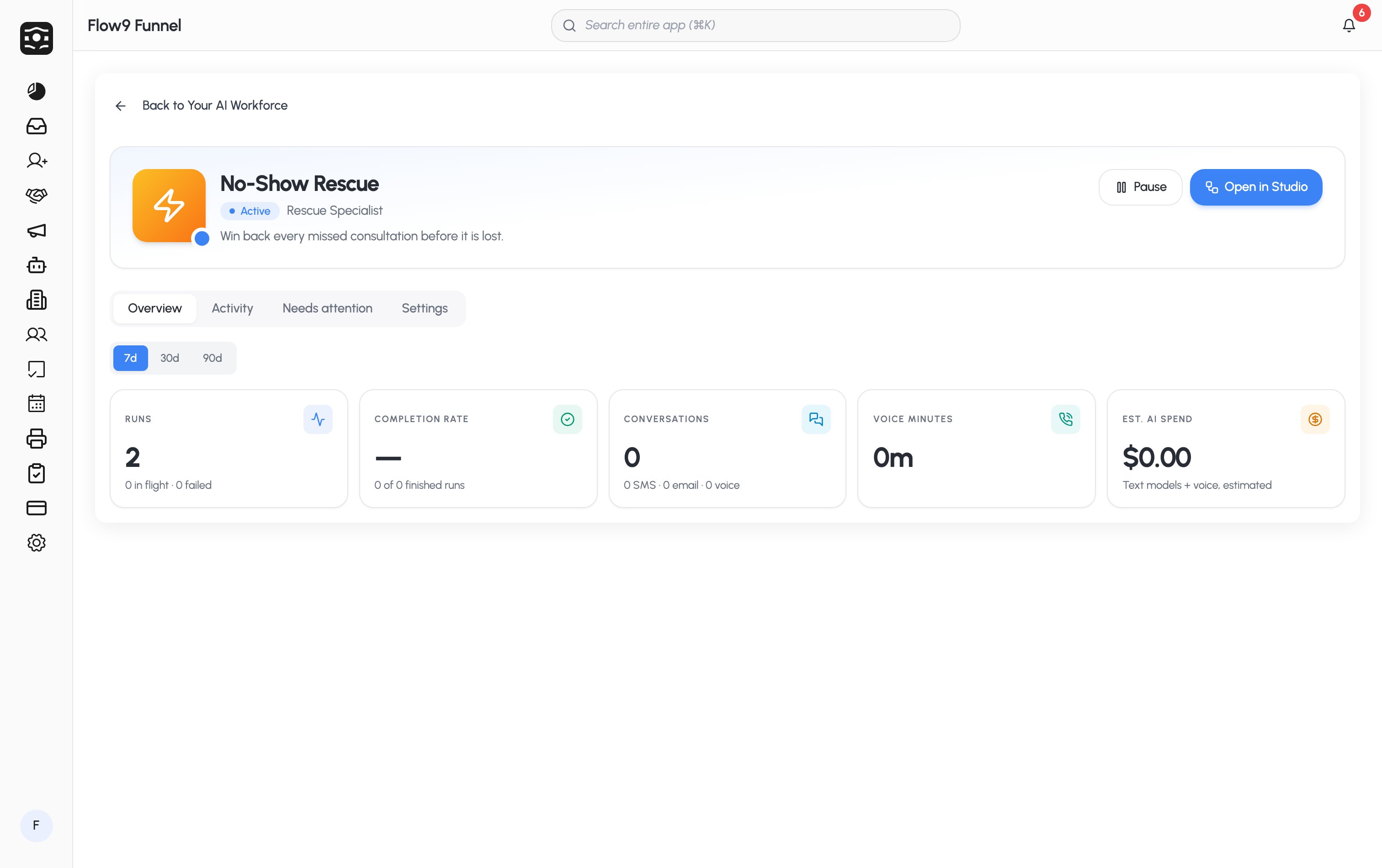
While a run is waiting on approval, it sits paused — the worker shows Needs
attention until someone responds or the timeout is reached.
Escalations
Every worker must define an Escalate to a human when… condition in its guardrails. When that condition is met, the worker stops and hands the run to a person rather than pushing ahead on its own.Where things needing attention show up
Open a worker’s profile and go to the Needs attention tab. It gathers everything a human needs to act on:
Running or waiting runs can be Stopped from here, and every item links
straight to the record it’s about. When nothing is outstanding you’ll see
“Nothing needs your attention.”
At a glance, any worker with outstanding items shows the Needs attention
status on the roster and dashboard.
The Approval Queue
The Approval Queue in the sidebar is a dedicated review surface for quote-discount approvals — where a manager approves a discount before an invoice can be created.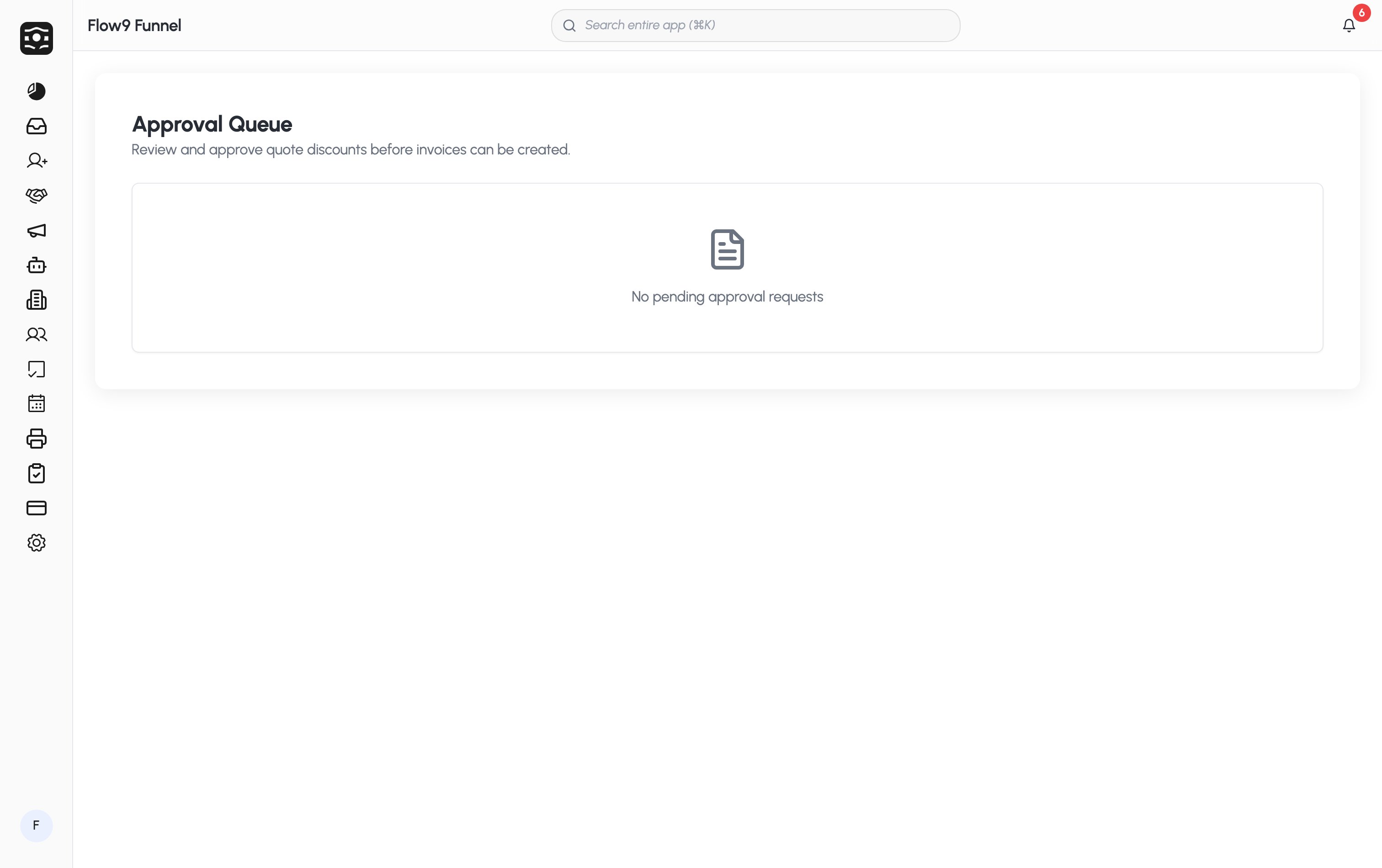
1
Open the queue
Click Approval Queue in the sidebar. Pending requests are listed as
cards; if there are none you’ll see No pending approval requests.
2
Review a request
Each card shows the quote number, the amount, the discount %, who requested
it, and when. Click View quote to see the full quote.
3
Approve or reject
Click Approve, or Reject and add an optional reason. Whether you can
approve a given request depends on your permissions.