/automations).
What you can build
AI Workers
Hire a worker for a role — Lead Nurturer, Follow-up Specialist, Outreach
Rep, Reminder Assistant — or start from scratch.
Visual workflows
Design what each worker does on a drag-free canvas: a trigger, then steps
that branch, wait, message, and update the CRM.
Guardrails by default
Every worker is safe until you say otherwise — no tools and no write-back
until you grant them, with escalation and spend caps built in.
Proof of value
A built-in ROI dashboard shows tasks completed, conversations, hours saved,
and AI spend — based on your own assumptions.
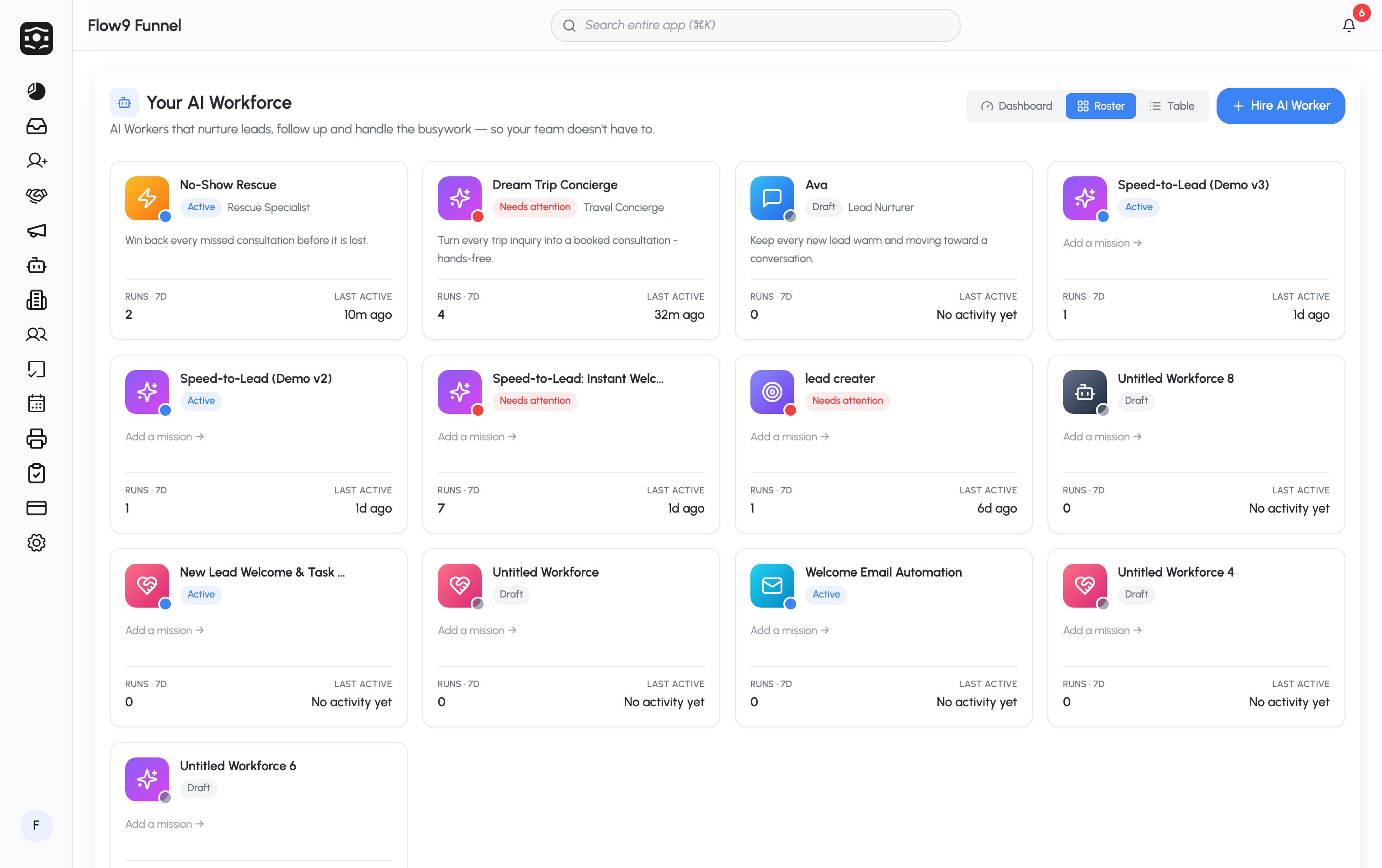
Three ways to view your workforce
The landing page (Your AI Workforce) has a view toggle in the top-right — your choice is remembered:Worker statuses
Wherever a worker appears, a status pill tells you what it’s doing:Getting started
1
Hire your first worker
Click Hire AI Worker, pick a role template (or start from scratch), and
give it a name and avatar. See Hire an AI Worker.
2
Design what it does
You land in the Studio — add a trigger and steps on the canvas, then
configure the AI Worker step with instructions and guardrails. See
Build a workflow.
3
Test, then publish
Run the whole flow once against a sample or a real record, watch it in the
log, then Publish to put the worker to work.
4
Watch the results
Track runs, conversations, and ROI on the Dashboard.
Who can use it. Workforce Studio is available to Company Admins, Branch
Managers, Team Leads, and Sales Agents. Editing ROI assumptions and the
weekly digest are admin-only.