> ## Documentation Index
> Fetch the complete documentation index at: https://flow9.mintlify.site/llms.txt
> Use this file to discover all available pages before exploring further.
# Workforce & schedules
> Plan and publish team shift schedules, track presence, and manage your own availability.
Workforce management has two surfaces: **Workforce** for managers planning the
team's shifts, and **My Schedule** for each agent's own calendar and
availability.
 Workforce is an optional feature that admins enable under **Workforce →
Feature Settings** ("Enable for this organization"). If it's off, the
Workforce pages are hidden for everyone.
## For managers: plan and publish shifts
Open **Workforce** to plan a week at a time (use the week navigator at the top
right):
In the **Template & Rules** tab, create your **shift types** — each with a
name, color, and start/end time. Sensible defaults (Morning, Evening,
Split, Off) are created for you the first time.
In the **Schedule** tab, the planner shows one row per employee and one
column per day. Click any cell to assign a shift type (or **Clear** it).
**Copy previous week** saves re-entering a repeating pattern.
Toggle **Publish** when the week is ready — agents are notified of their
assigned shifts. You can unlock the week again to make changes.
The **Live presence** strip under the planner shows how many agents are
currently **Online**, **Away**, or **Offline**, and the **Calendar** tab lets
you view any team member's calendar.
## For agents: My Schedule
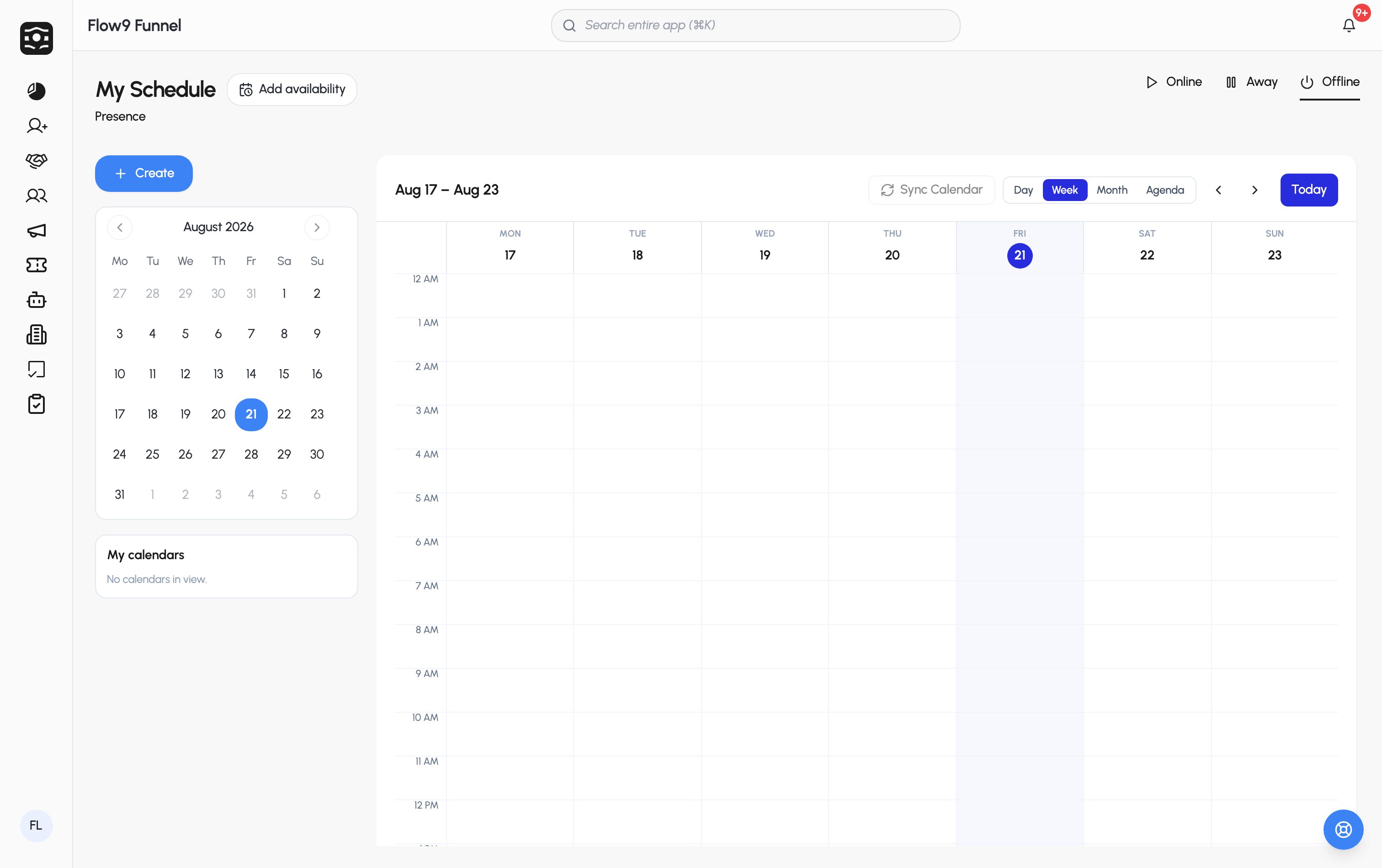
**My Schedule** is your personal calendar — day, week, month, and agenda
views, with your assigned **shifts**, **CRM events**, **SLA** items, and
synced **Google Calendar** events each toggleable in the "My calendars" list.
* **Set your presence** — the **Online / Away / Offline** control in the
header tells your manager (and routing) whether you're reachable.
* **Manage your availability** — **Edit availability** opens a drawer where
you set your timezone, weekly working windows per day, buffers before/after
meetings, minimum lead time, and daily/weekly booking caps. An
**out-of-office** entry overrides everything — no routing or bookings while
it's active.
* **Create events** — same smart availability checking described in
[Email & calendar](/guide/email-and-calendar).
Your working hours and availability aren't just informational — they feed
appointment booking and lead routing, so keeping them current means you only
get booked when you're actually reachable.
## Notifications
Two bells in the header keep you current: the **notifications bell** (SLA
alerts, shift assignments, and other actionable or informational alerts, with
mark-read and dismiss) and the **task bell** (tasks due now or coming up in
the next two hours, with a shortcut to log an outcome).
Workforce is an optional feature that admins enable under **Workforce →
Feature Settings** ("Enable for this organization"). If it's off, the
Workforce pages are hidden for everyone.
## For managers: plan and publish shifts
Open **Workforce** to plan a week at a time (use the week navigator at the top
right):
In the **Template & Rules** tab, create your **shift types** — each with a
name, color, and start/end time. Sensible defaults (Morning, Evening,
Split, Off) are created for you the first time.
In the **Schedule** tab, the planner shows one row per employee and one
column per day. Click any cell to assign a shift type (or **Clear** it).
**Copy previous week** saves re-entering a repeating pattern.
Toggle **Publish** when the week is ready — agents are notified of their
assigned shifts. You can unlock the week again to make changes.
The **Live presence** strip under the planner shows how many agents are
currently **Online**, **Away**, or **Offline**, and the **Calendar** tab lets
you view any team member's calendar.
## For agents: My Schedule
**My Schedule** is your personal calendar — day, week, month, and agenda
views, with your assigned **shifts**, **CRM events**, **SLA** items, and
synced **Google Calendar** events each toggleable in the "My calendars" list.
* **Set your presence** — the **Online / Away / Offline** control in the
header tells your manager (and routing) whether you're reachable.
* **Manage your availability** — **Edit availability** opens a drawer where
you set your timezone, weekly working windows per day, buffers before/after
meetings, minimum lead time, and daily/weekly booking caps. An
**out-of-office** entry overrides everything — no routing or bookings while
it's active.
* **Create events** — same smart availability checking described in
[Email & calendar](/guide/email-and-calendar).
Your working hours and availability aren't just informational — they feed
appointment booking and lead routing, so keeping them current means you only
get booked when you're actually reachable.
## Notifications
Two bells in the header keep you current: the **notifications bell** (SLA
alerts, shift assignments, and other actionable or informational alerts, with
mark-read and dismiss) and the **task bell** (tasks due now or coming up in
the next two hours, with a shortcut to log an outcome).