> ## Documentation Index
> Fetch the complete documentation index at: https://flow9.mintlify.site/llms.txt
> Use this file to discover all available pages before exploring further.
# Build a workflow
> Design what a worker does in the Studio — a trigger, steps on the canvas, then test and publish.
The **Studio** is the visual builder for a worker's workflow. A workflow always
starts with one **trigger** (what enrols a contact) and flows down through the
**steps** you add, to an **End**.
Open it from a worker's **⋯** menu → **Open in Studio**, or you land here
automatically right after hiring.
 ## The builder at a glance
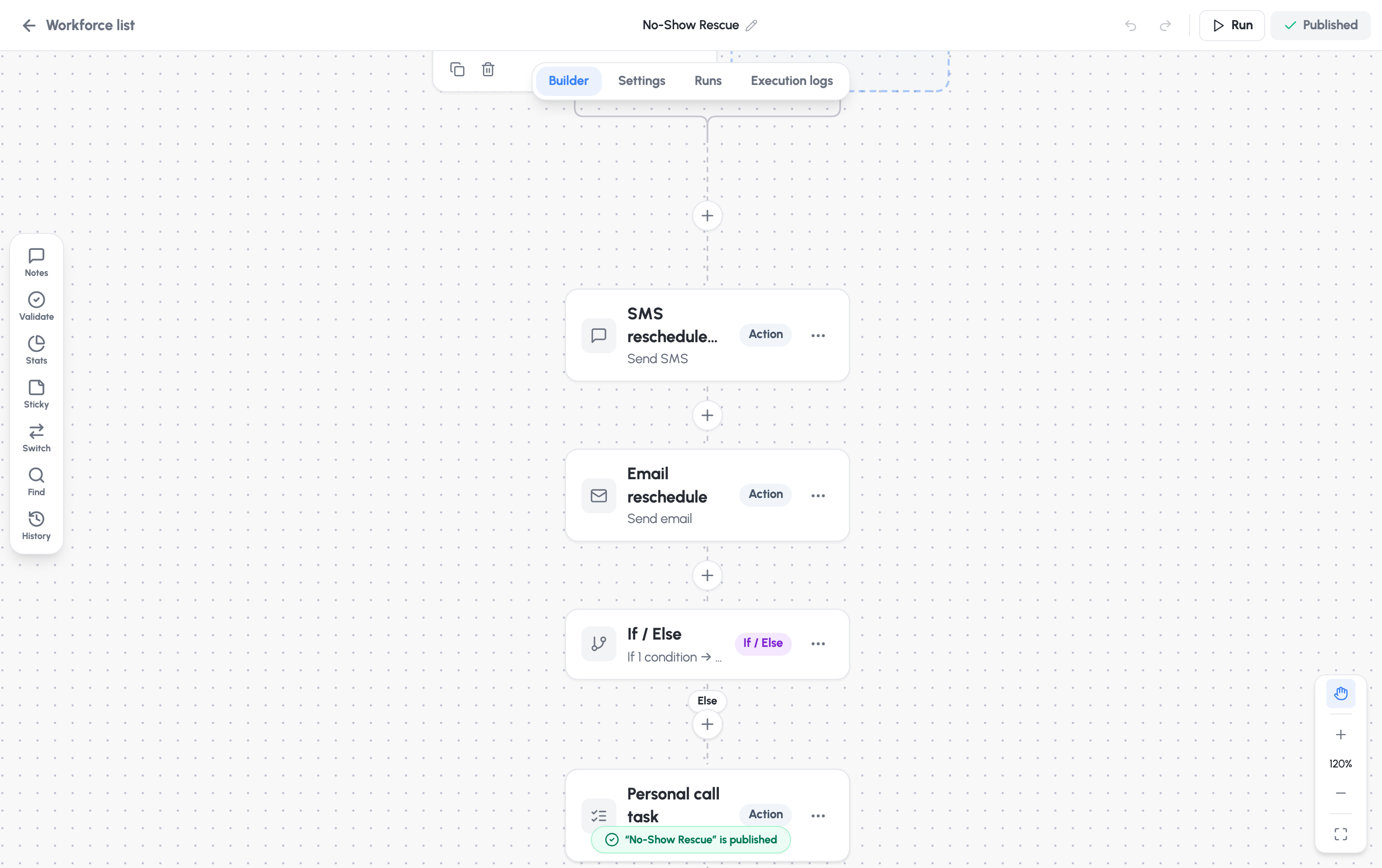
**Top bar**
* **Workforce list** (back arrow) — returns to the roster. If you have unsaved
changes, you're asked first.
* **Workforce name** — click the pencil to rename inline.
* **Undo / Redo**, then **Run** (opens the test panel), then **Publish**.
**Tabs**
| Tab | What it's for |
| ------------------ | -------------------------------------------------------------- |
| **Builder** | The canvas where you design the flow. |
| **Settings** | The worker profile card and [re-entry rules](#re-entry-rules). |
| **Runs** | History of every time the workflow has run. |
| **Execution logs** | Step-by-step detail for a single run. |
**Left toolbar** — Notes, **Validate** (checks for publish-blockers), Stats,
Sticky notes, the Workforce switcher, Find & replace, and Version history. Most
have keyboard shortcuts shown on hover.
## Add a trigger
Every workflow needs exactly one trigger — the event that enrols a contact.
Click **Add trigger** and pick from the catalogue:
| Group | Triggers |
| ------------------------------ | -------------------------------------------------------- |
| **Records & CRM** | Object event, Form / survey submitted, Task / note event |
| **Communication · Inbound** | Inbound call, email, SMS, or fax |
| **Communication · Engagement** | Call outcome, Email event, SMS event, Contact replied |
| **Scheduling & dates** | Scheduler (recurring), Appointment / calendar |
| **Automation & system** | Inbound webhook, Workforce chaining |
Add **filters** ("Only enrol when…") to narrow who gets enrolled — the trigger
card shows how many filters are applied.
## Add steps
Click the **+** on any connector between steps to open the step picker. Steps
fall into two families — [control-flow steps and actions](/guide/workforce-studio/steps-and-actions)
— including the all-important **AI Worker** step that does the reasoning and
messaging.
A step you're configuring opens in a panel over the canvas. **Nothing is
added to the flow until you click Save in the panel** — so you can back out of
a half-built step without leaving a mess.
Steps that aren't finished show a warning and will block publishing until
they're complete. Use **Validate** in the left toolbar at any time — it badges
the number of things still missing (e.g. *"Validate — 3 missing to fix"*).
## Save, publish, and run
Press **⌘S** (or **Save & leave**). Saving keeps your draft — it does not
make the worker live.
Click **Publish** (or **Publish Changes** once it's already live). Flow9
validates first; if something's missing you'll see *"Can't publish yet"*
with the first thing to fix. Once published, the worker is live.
Click **Run** to open the test panel and watch a full run end-to-end (see
below).
**Publishing is blocked** when: there's no trigger; a trigger or step is missing
a required field; steps aren't connected to the trigger; or a **Go to** creates
a loop with no way out.
## Test the Workforce
The **Run** button opens **Run a test** — run the whole flow once and watch it
in the execution log.
## The builder at a glance
**Top bar**
* **Workforce list** (back arrow) — returns to the roster. If you have unsaved
changes, you're asked first.
* **Workforce name** — click the pencil to rename inline.
* **Undo / Redo**, then **Run** (opens the test panel), then **Publish**.
**Tabs**
| Tab | What it's for |
| ------------------ | -------------------------------------------------------------- |
| **Builder** | The canvas where you design the flow. |
| **Settings** | The worker profile card and [re-entry rules](#re-entry-rules). |
| **Runs** | History of every time the workflow has run. |
| **Execution logs** | Step-by-step detail for a single run. |
**Left toolbar** — Notes, **Validate** (checks for publish-blockers), Stats,
Sticky notes, the Workforce switcher, Find & replace, and Version history. Most
have keyboard shortcuts shown on hover.
## Add a trigger
Every workflow needs exactly one trigger — the event that enrols a contact.
Click **Add trigger** and pick from the catalogue:
| Group | Triggers |
| ------------------------------ | -------------------------------------------------------- |
| **Records & CRM** | Object event, Form / survey submitted, Task / note event |
| **Communication · Inbound** | Inbound call, email, SMS, or fax |
| **Communication · Engagement** | Call outcome, Email event, SMS event, Contact replied |
| **Scheduling & dates** | Scheduler (recurring), Appointment / calendar |
| **Automation & system** | Inbound webhook, Workforce chaining |
Add **filters** ("Only enrol when…") to narrow who gets enrolled — the trigger
card shows how many filters are applied.
## Add steps
Click the **+** on any connector between steps to open the step picker. Steps
fall into two families — [control-flow steps and actions](/guide/workforce-studio/steps-and-actions)
— including the all-important **AI Worker** step that does the reasoning and
messaging.
A step you're configuring opens in a panel over the canvas. **Nothing is
added to the flow until you click Save in the panel** — so you can back out of
a half-built step without leaving a mess.
Steps that aren't finished show a warning and will block publishing until
they're complete. Use **Validate** in the left toolbar at any time — it badges
the number of things still missing (e.g. *"Validate — 3 missing to fix"*).
## Save, publish, and run
Press **⌘S** (or **Save & leave**). Saving keeps your draft — it does not
make the worker live.
Click **Publish** (or **Publish Changes** once it's already live). Flow9
validates first; if something's missing you'll see *"Can't publish yet"*
with the first thing to fix. Once published, the worker is live.
Click **Run** to open the test panel and watch a full run end-to-end (see
below).
**Publishing is blocked** when: there's no trigger; a trigger or step is missing
a required field; steps aren't connected to the trigger; or a **Go to** creates
a loop with no way out.
## Test the Workforce
The **Run** button opens **Run a test** — run the whole flow once and watch it
in the execution log.
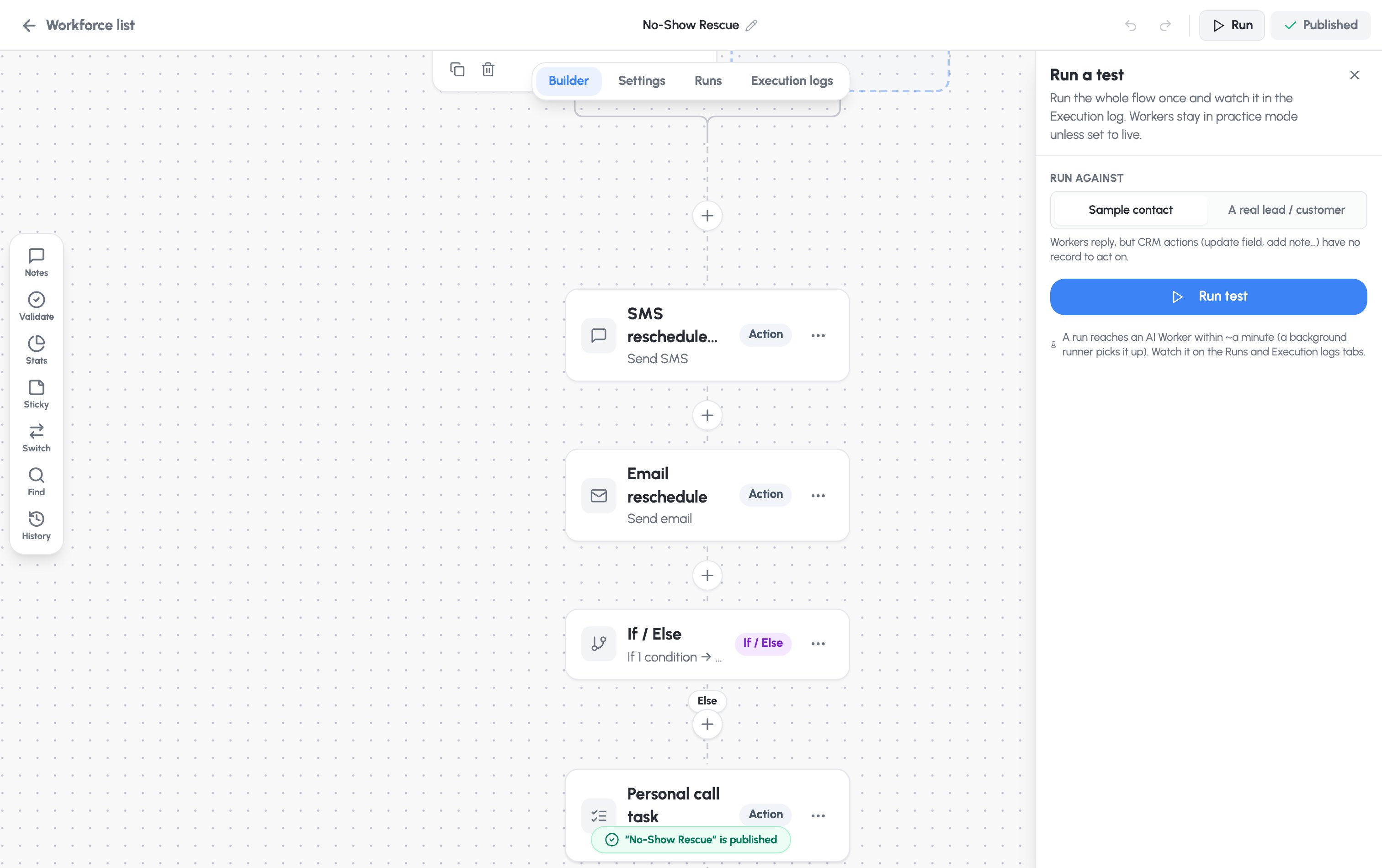 * **Sample contact** — workers reply, but CRM actions have no real record to
change. Safe for a first look.
* **A real lead / customer** — CRM actions really run against the record you
pick. Check the change in the log *and* on the record.
For flows triggered by an inbound message, type a **sample incoming
message** so the worker has something to respond to.
Click **Run test**. A background runner picks it up within about a minute —
follow it on the **Runs** and **Execution logs** tabs.
Only a **published** workflow can be test-run. Workers stay in practice mode
unless a step has **Perform actions for real** switched on — see
[Steps & actions](/guide/workforce-studio/steps-and-actions#the-ai-worker-step).
Run statuses you'll see on the Runs and Execution logs tabs: **running**, **in
progress** (waiting), **completed**, **failed**, **cancelled**.
## Re-entry rules
On the **Settings** tab, re-entry rules control how often the same contact can
be enrolled. They're enforced every time the workflow runs:
* **Allow re-entry** — when off, a contact enrols at most once and never
re-enters.
* **Re-entry cooldown** — don't re-enrol the same contact within this many
hours (a dedupe window).
* **Maximum enrolments per contact** — cap total enrolments (blank = unlimited).
* **Sample contact** — workers reply, but CRM actions have no real record to
change. Safe for a first look.
* **A real lead / customer** — CRM actions really run against the record you
pick. Check the change in the log *and* on the record.
For flows triggered by an inbound message, type a **sample incoming
message** so the worker has something to respond to.
Click **Run test**. A background runner picks it up within about a minute —
follow it on the **Runs** and **Execution logs** tabs.
Only a **published** workflow can be test-run. Workers stay in practice mode
unless a step has **Perform actions for real** switched on — see
[Steps & actions](/guide/workforce-studio/steps-and-actions#the-ai-worker-step).
Run statuses you'll see on the Runs and Execution logs tabs: **running**, **in
progress** (waiting), **completed**, **failed**, **cancelled**.
## Re-entry rules
On the **Settings** tab, re-entry rules control how often the same contact can
be enrolled. They're enforced every time the workflow runs:
* **Allow re-entry** — when off, a contact enrols at most once and never
re-enters.
* **Re-entry cooldown** — don't re-enrol the same contact within this many
hours (a dedupe window).
* **Maximum enrolments per contact** — cap total enrolments (blank = unlimited).