> ## Documentation Index
> Fetch the complete documentation index at: https://flow9.mintlify.site/llms.txt
> Use this file to discover all available pages before exploring further.
# AI Workforces
> Hire AI Workers that nurture leads, chase follow-ups, and handle the busywork — built visually in Workforce Studio.
**Workforce Studio** is where you build and manage your **AI Workforce** — AI
Workers that reason over each contact's context and drive an outcome on a
channel (SMS, email, voice) or as a general task, so your team doesn't have to
do the busywork by hand.
Open it from **Workforce Studio** in the sidebar (it lives at `/automations`).
 ## What you can build
Hire a worker for a role — Lead Nurturer, Follow-up Specialist, Outreach
Rep, Reminder Assistant — or start from scratch.
Design what each worker does on a drag-free canvas: a trigger, then steps
that branch, wait, message, and update the CRM.
Every worker is safe until you say otherwise — no tools and no write-back
until you grant them, with escalation and spend caps built in.
A built-in ROI dashboard shows tasks completed, conversations, hours saved,
and AI spend — based on your own assumptions.
## Three ways to view your workforce
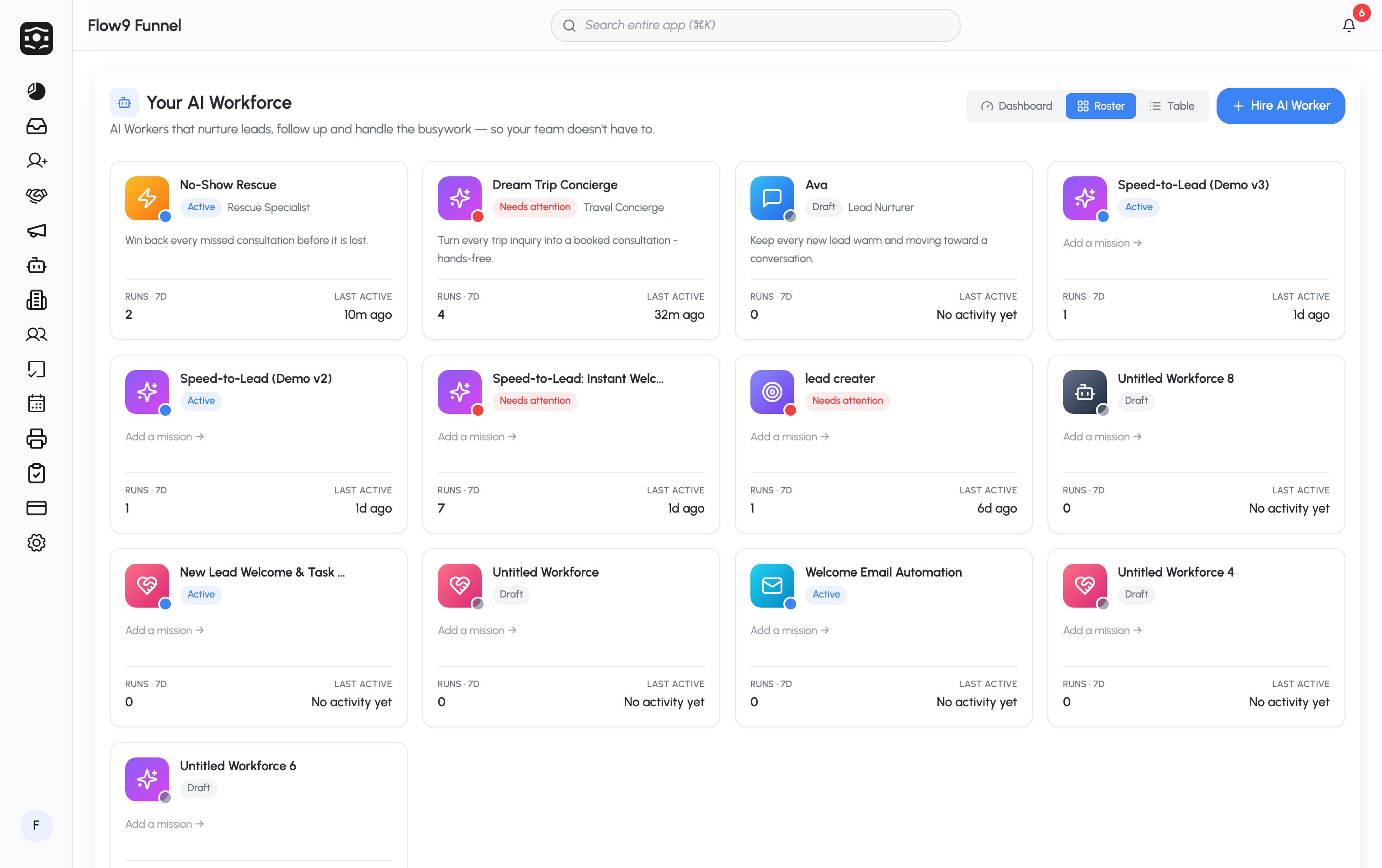
The landing page (**Your AI Workforce**) has a view toggle in the top-right —
your choice is remembered:
| View | Shows |
| ------------- | --------------------------------------------------------------------------------------------------------------------------------- |
| **Dashboard** | The [Workforce ROI dashboard](/guide/workforce-studio/roi-and-usage) — KPIs, trend, and a per-worker breakdown. The default view. |
| **Roster** | A card gallery of your workers, each with a live status, role, mission, 7-day run count, and last-active time. |
| **Table** | A compact table: Worker, Status, Runs (7d), Last updated. |
## Worker statuses
Wherever a worker appears, a status pill tells you what it's doing:
| Status | Meaning |
| ------------------- | ----------------------------------------------------------------------------------------------------------------------------------------------- |
| **Working now** | The worker has runs in flight right now. |
| **Needs attention** | Something needs a human — a failed run, a pending approval, or an escalation. See [Approvals & escalations](/guide/workforce-studio/approvals). |
| **Paused** | The worker is paused and won't take new work. |
| **Active** | Published and live, currently idle. |
| **Draft** | Not published yet — still being built. |
## Getting started
Click **Hire AI Worker**, pick a role template (or start from scratch), and
give it a name and avatar. See [Hire an AI Worker](/guide/workforce-studio/hire-a-worker).
You land in the **Studio** — add a trigger and steps on the canvas, then
configure the AI Worker step with instructions and guardrails. See
[Build a workflow](/guide/workforce-studio/workflow-builder).
Run the whole flow once against a sample or a real record, watch it in the
log, then **Publish** to put the worker to work.
Track runs, conversations, and ROI on the **Dashboard**.
**Who can use it.** Workforce Studio is available to Company Admins, Branch
Managers, Team Leads, and Sales Agents. Editing ROI assumptions and the
weekly digest are admin-only.
## What you can build
Hire a worker for a role — Lead Nurturer, Follow-up Specialist, Outreach
Rep, Reminder Assistant — or start from scratch.
Design what each worker does on a drag-free canvas: a trigger, then steps
that branch, wait, message, and update the CRM.
Every worker is safe until you say otherwise — no tools and no write-back
until you grant them, with escalation and spend caps built in.
A built-in ROI dashboard shows tasks completed, conversations, hours saved,
and AI spend — based on your own assumptions.
## Three ways to view your workforce
The landing page (**Your AI Workforce**) has a view toggle in the top-right —
your choice is remembered:
| View | Shows |
| ------------- | --------------------------------------------------------------------------------------------------------------------------------- |
| **Dashboard** | The [Workforce ROI dashboard](/guide/workforce-studio/roi-and-usage) — KPIs, trend, and a per-worker breakdown. The default view. |
| **Roster** | A card gallery of your workers, each with a live status, role, mission, 7-day run count, and last-active time. |
| **Table** | A compact table: Worker, Status, Runs (7d), Last updated. |
## Worker statuses
Wherever a worker appears, a status pill tells you what it's doing:
| Status | Meaning |
| ------------------- | ----------------------------------------------------------------------------------------------------------------------------------------------- |
| **Working now** | The worker has runs in flight right now. |
| **Needs attention** | Something needs a human — a failed run, a pending approval, or an escalation. See [Approvals & escalations](/guide/workforce-studio/approvals). |
| **Paused** | The worker is paused and won't take new work. |
| **Active** | Published and live, currently idle. |
| **Draft** | Not published yet — still being built. |
## Getting started
Click **Hire AI Worker**, pick a role template (or start from scratch), and
give it a name and avatar. See [Hire an AI Worker](/guide/workforce-studio/hire-a-worker).
You land in the **Studio** — add a trigger and steps on the canvas, then
configure the AI Worker step with instructions and guardrails. See
[Build a workflow](/guide/workforce-studio/workflow-builder).
Run the whole flow once against a sample or a real record, watch it in the
log, then **Publish** to put the worker to work.
Track runs, conversations, and ROI on the **Dashboard**.
**Who can use it.** Workforce Studio is available to Company Admins, Branch
Managers, Team Leads, and Sales Agents. Editing ROI assumptions and the
weekly digest are admin-only.