> ## Documentation Index
> Fetch the complete documentation index at: https://flow9.mintlify.site/llms.txt
> Use this file to discover all available pages before exploring further.
# Approvals & escalations
> Keep a human in the loop — pause a run for approval, and see everything that needs attention in one place.
AI Workers are built to hand off to a person when it matters. Two mechanisms
keep humans in control: an **approval step** you place in a workflow, and
**escalations** that a worker raises on its own.
## Pause for approval
Add a **Wait for approval** step (a [control-flow step](/guide/workforce-studio/steps-and-actions#control-flow-steps))
anywhere you want a person to sign off before the run continues. It creates two
paths:
* **Approved** — taken when a teammate approves.
* **Rejected** — taken when a teammate rejects.
Configure:
* **Wait for an answer (hours)** — how long to wait before timing out (default
72\).
* **If nobody answers in time** — take the **Rejected** path (default) or the
**Approved** path.
While a run is waiting on approval, it sits paused — the worker shows **Needs
attention** until someone responds or the timeout is reached.
## Escalations
Every worker must define an **Escalate to a human when…** condition in its
[guardrails](/guide/workforce-studio/steps-and-actions#guardrails). When that
condition is met, the worker stops and hands the run to a person rather than
pushing ahead on its own.
## Where things needing attention show up
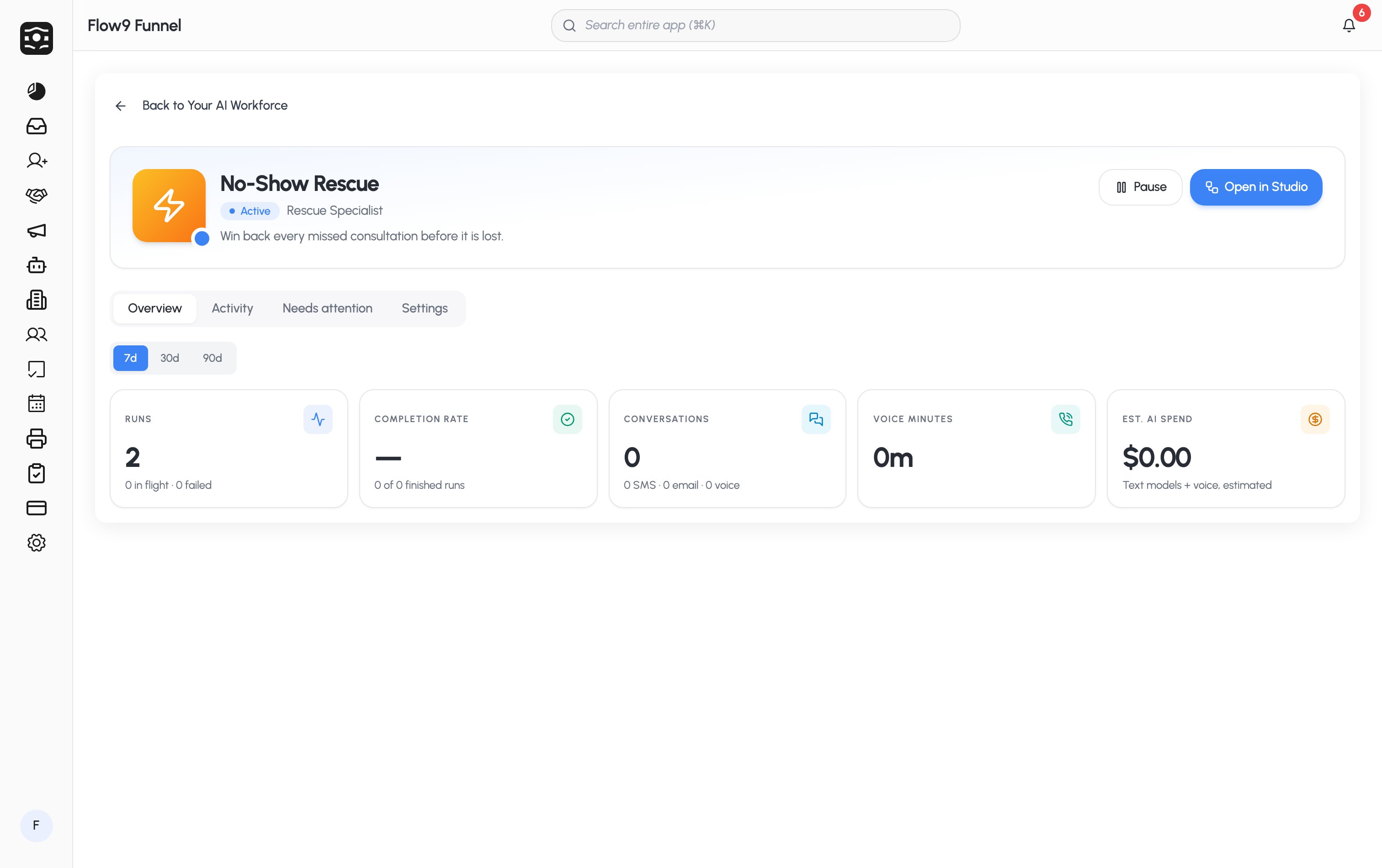
Open a worker's profile and go to the **Needs attention** tab. It gathers
everything a human needs to act on:
| Kind | What it means | What you can do |
| -------------------- | ---------------------------------------------- | ---------------------------------- |
| **Run failed** | A run errored out. | **Run again**, or **View record**. |
| **Approval pending** | A run is paused on a *Wait for approval* step. | Review and respond. |
| **Escalated to you** | A worker handed a run off to a person. | Pick it up from the record. |
Running or waiting runs can be **Stopped** from here, and every item links
straight to the record it's about. When nothing is outstanding you'll see
*"Nothing needs your attention."*
At a glance, any worker with outstanding items shows the **Needs attention**
status on the roster and dashboard.
 ## The Approval Queue
The **Approval Queue** in the sidebar is a dedicated review surface for
**quote-discount approvals** — where a manager approves a discount before an
invoice can be created.
## The Approval Queue
The **Approval Queue** in the sidebar is a dedicated review surface for
**quote-discount approvals** — where a manager approves a discount before an
invoice can be created.
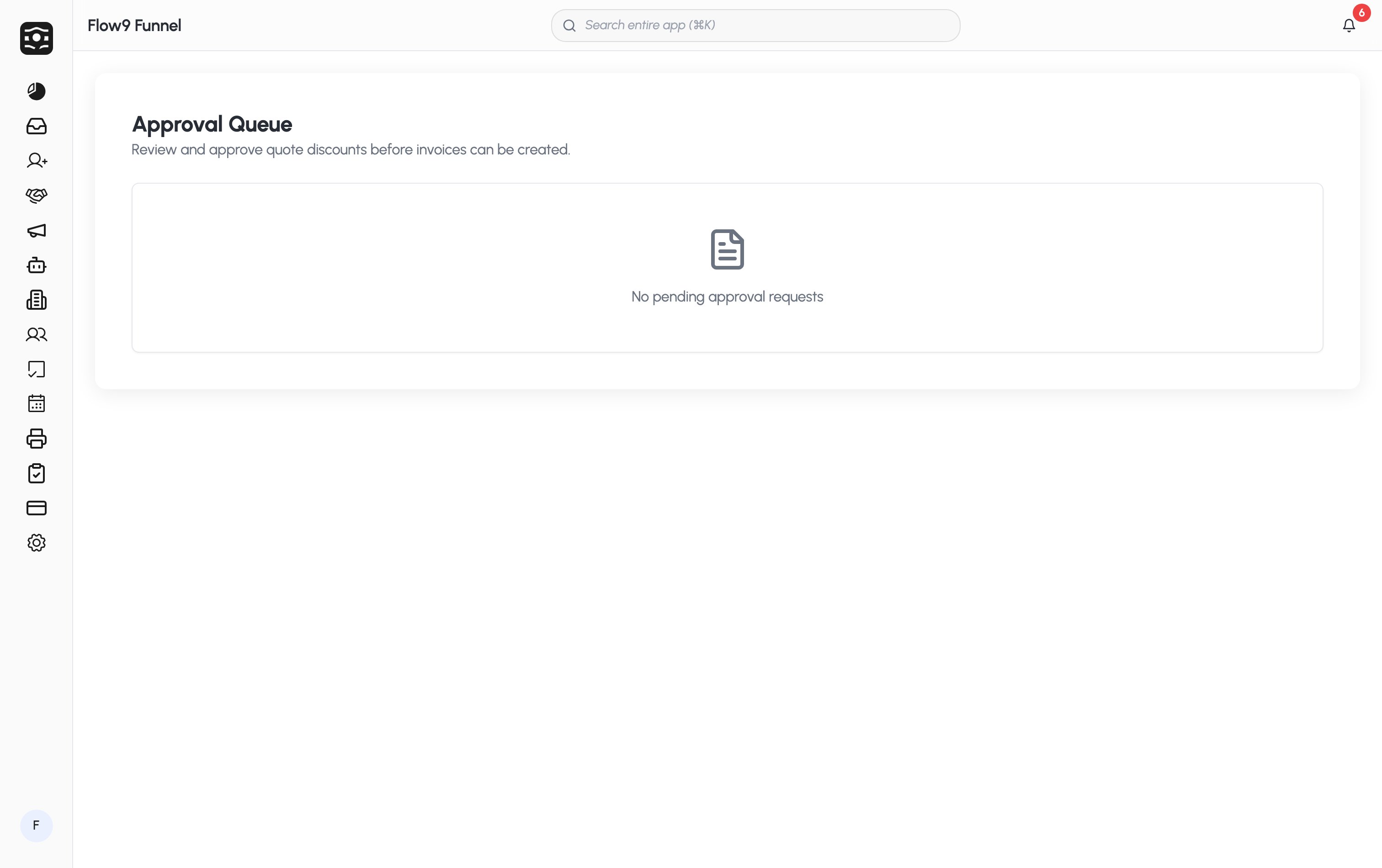 Click **Approval Queue** in the sidebar. Pending requests are listed as
cards; if there are none you'll see **No pending approval requests**.
Each card shows the quote number, the amount, the discount %, who requested
it, and when. Click **View quote** to see the full quote.
Click **Approve**, or **Reject** and add an optional reason. Whether you can
approve a given request depends on your permissions.
Click **Approval Queue** in the sidebar. Pending requests are listed as
cards; if there are none you'll see **No pending approval requests**.
Each card shows the quote number, the amount, the discount %, who requested
it, and when. Click **View quote** to see the full quote.
Click **Approve**, or **Reject** and add an optional reason. Whether you can
approve a given request depends on your permissions.