> ## Documentation Index
> Fetch the complete documentation index at: https://flow9.mintlify.site/llms.txt
> Use this file to discover all available pages before exploring further.
# Leads
> Capture, qualify, score, and convert leads — with custom statuses, auto-tags, and duplicate protection.
Leads are your incoming inquiries. Work them from the **Leads** page in a
table or a **Pipeline** (kanban) view — your choice is remembered.
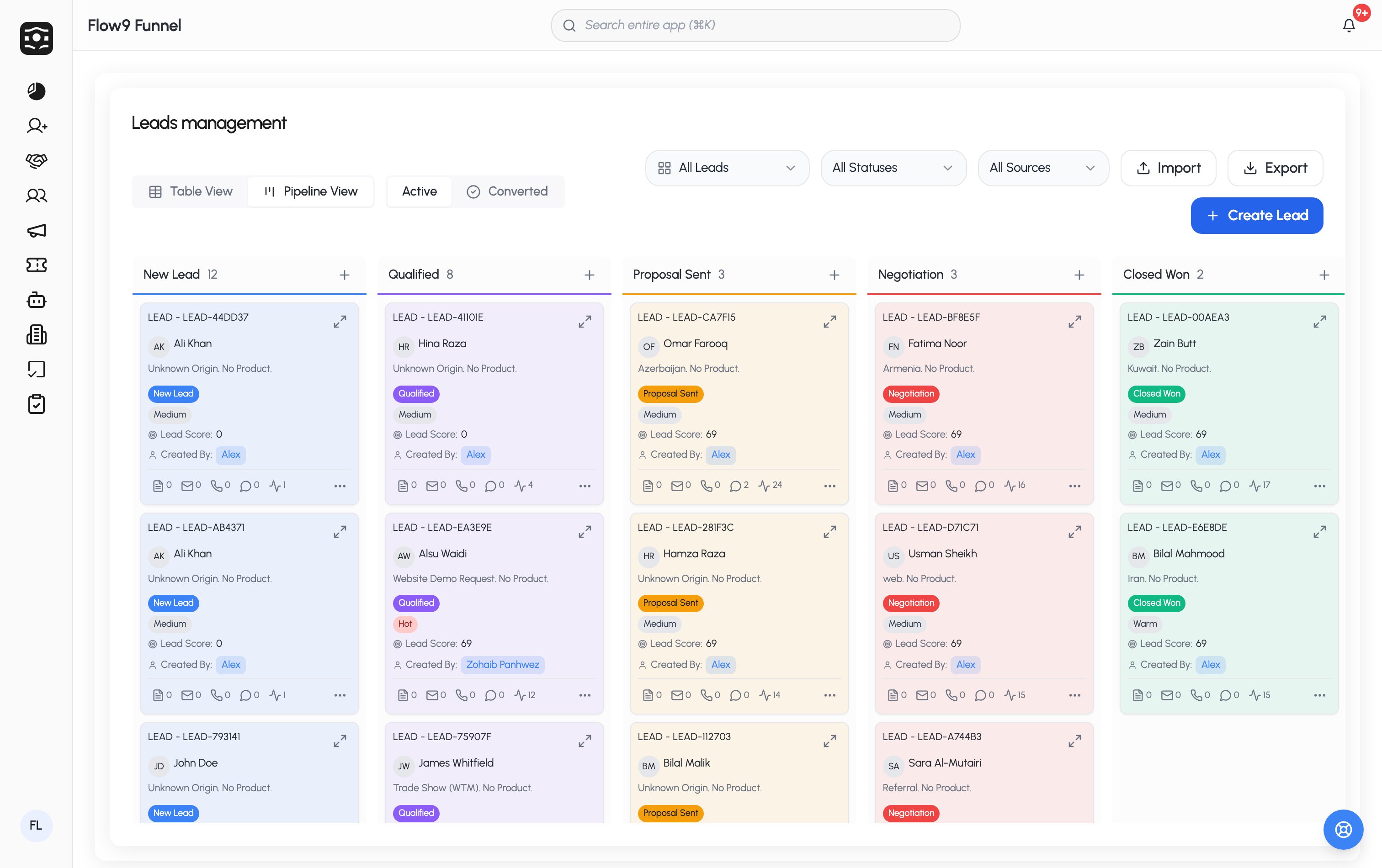 Your workspace may rename entities ("Leads" could be "Enquiries") and add
its own statuses, sources, and custom fields — so your exact options come
from your admin's configuration. This page describes the defaults.
## Create a lead
Click **Create Lead** and fill in what you know: name, email, mobile, the
**lead status** and **source**, inquiry details (rich text), notes, and any
custom fields your workspace has added. You can also link the lead to an
**account**, set the **owner** and **assignee**, and choose the record's
**visibility**. Tick **Add more** to keep the form open for the next lead.
If your workspace has duplicate checking on, a **Duplicate Check** button
verifies the lead isn't already in the system — creation is blocked when a
match is found on the configured fields.
## Qualify and organize
* **Statuses** are your workspace's own pipeline steps, each with a color.
Some statuses have *pre-conditions* — fields that must be filled before a
lead can move there.
* **Lead score** — a numeric pill in the list, computed from how complete the
lead's information is (your admin sets each field's weight). Filter the list
by score band (0–30, 31–60, 61–100).
* **Tags** apply themselves: your admin defines rules (e.g. "budget over X
and source is website"), and matching leads get tagged automatically.
* **Filters**: ownership (all / mine / team), status, source, marketing
channel, and score — plus search and an Active/Converted toggle.
## Convert a lead
When a lead is ready, open its row menu and choose **Convert**:
Tick **Create Deal**, **Create Customer**, or both.
For a deal: the auto-suggested deal name, **selling price** (with
currency), **deal status**, and closing date. If the chosen status has
required fields, an amber panel lists them.
The lead is marked converted (a status it can only reach through this
flow), the customer is created or matched to an existing one, and the
lead's custom-field values carry over to the new records.
## Import & export
The Leads page has **Import** and **Export** buttons (CSV). Export respects
your current filters and selection.
Your workspace may rename entities ("Leads" could be "Enquiries") and add
its own statuses, sources, and custom fields — so your exact options come
from your admin's configuration. This page describes the defaults.
## Create a lead
Click **Create Lead** and fill in what you know: name, email, mobile, the
**lead status** and **source**, inquiry details (rich text), notes, and any
custom fields your workspace has added. You can also link the lead to an
**account**, set the **owner** and **assignee**, and choose the record's
**visibility**. Tick **Add more** to keep the form open for the next lead.
If your workspace has duplicate checking on, a **Duplicate Check** button
verifies the lead isn't already in the system — creation is blocked when a
match is found on the configured fields.
## Qualify and organize
* **Statuses** are your workspace's own pipeline steps, each with a color.
Some statuses have *pre-conditions* — fields that must be filled before a
lead can move there.
* **Lead score** — a numeric pill in the list, computed from how complete the
lead's information is (your admin sets each field's weight). Filter the list
by score band (0–30, 31–60, 61–100).
* **Tags** apply themselves: your admin defines rules (e.g. "budget over X
and source is website"), and matching leads get tagged automatically.
* **Filters**: ownership (all / mine / team), status, source, marketing
channel, and score — plus search and an Active/Converted toggle.
## Convert a lead
When a lead is ready, open its row menu and choose **Convert**:
Tick **Create Deal**, **Create Customer**, or both.
For a deal: the auto-suggested deal name, **selling price** (with
currency), **deal status**, and closing date. If the chosen status has
required fields, an amber panel lists them.
The lead is marked converted (a status it can only reach through this
flow), the customer is created or matched to an existing one, and the
lead's custom-field values carry over to the new records.
## Import & export
The Leads page has **Import** and **Export** buttons (CSV). Export respects
your current filters and selection.